> For the complete documentation index, see [llms.txt](https://docs.easypay.sa/easypay/llms.txt). Markdown versions of documentation pages are available by appending `.md` to page URLs; this page is available as [Markdown](https://docs.easypay.sa/easypay/quick-start.md).
# Quick Start
This section shows you the minimum steps to integrate and start experiencing your first transaction. In other words, it gives you the flow of creating your first purchase transaction.
## **Before you begin**
Easypay team needs to assigned a demo terminal for you using your phone number to be able to start this integration.\
\
In addition, you need to have an android physical device that supports NFC to be able to test the integration and run the app on it.
## **Start your first transaction:**
### **1- Downland and install the Easypay app form google store** [**Click here to downland**](https://play.google.com/store/apps/details?id=com.easyerps.easypay)**.**
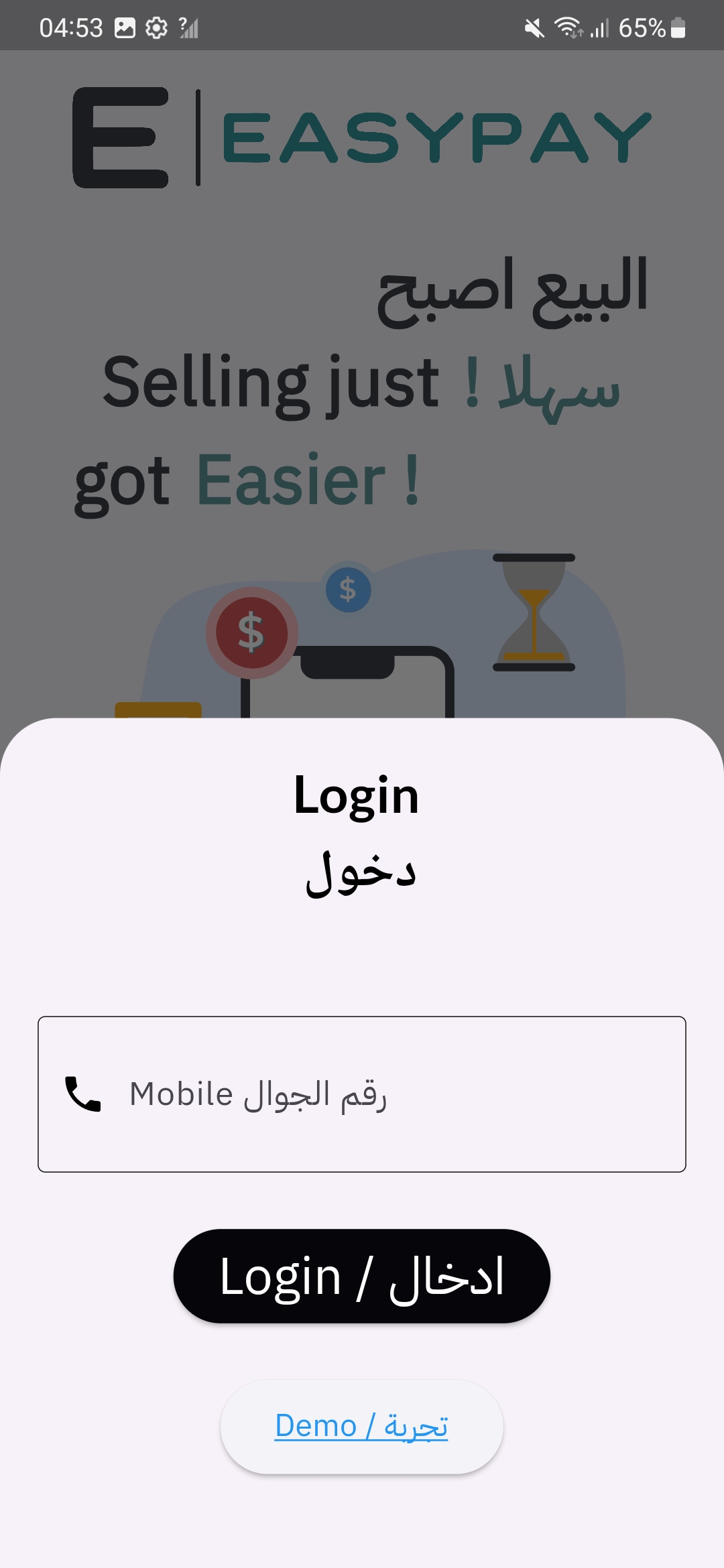
### 2- Login by clicking demo button by entering your phone number and then follow the setup instruction.
### 3- on app home screen click to Connect and then click Start, after service starting save the IP Address for later use and than click Running on background
### 4- Create WebSocket **wherever you need:**
```javascript
// Create WebSocket connection.
const socket = new WebSocket("ws://localhost:5000"); // use "localhost" for connection on same device or use "IP address" for connection from external device.
// Connection opened
socket.onopen = () => {
// connection opened – add action here
});
// Listen for messages
socket.onmessage = (event) => {
// payload received and message can be fetched on event.data
// parse JSON message here or add an action
});
// Listen for possible errors
socket.onerror = (event) => {
// error can be determined on evt.message
});
// Connection opened
socket.onclose = () => {
// connection closed
});
```
### 5- Sending Socket function:
socket.send(JSON.stringify({
    "method": "PURCHASE",
    "amount": 100, // [Required] ammount you want to set .
    "customerReferenceNumber": "1234" // [optional] any number you want to add as a refrence Any string as a reference number.
}));
### 6- Close WebSocket function:
```javascript
socket.close();
```